


Variable Usage in Widget Properties
Variable is used in different fields under Edit Widget Properties. For example, in a Column Chart widget, the Variables are used as part of Data Source property or as part of Events property.
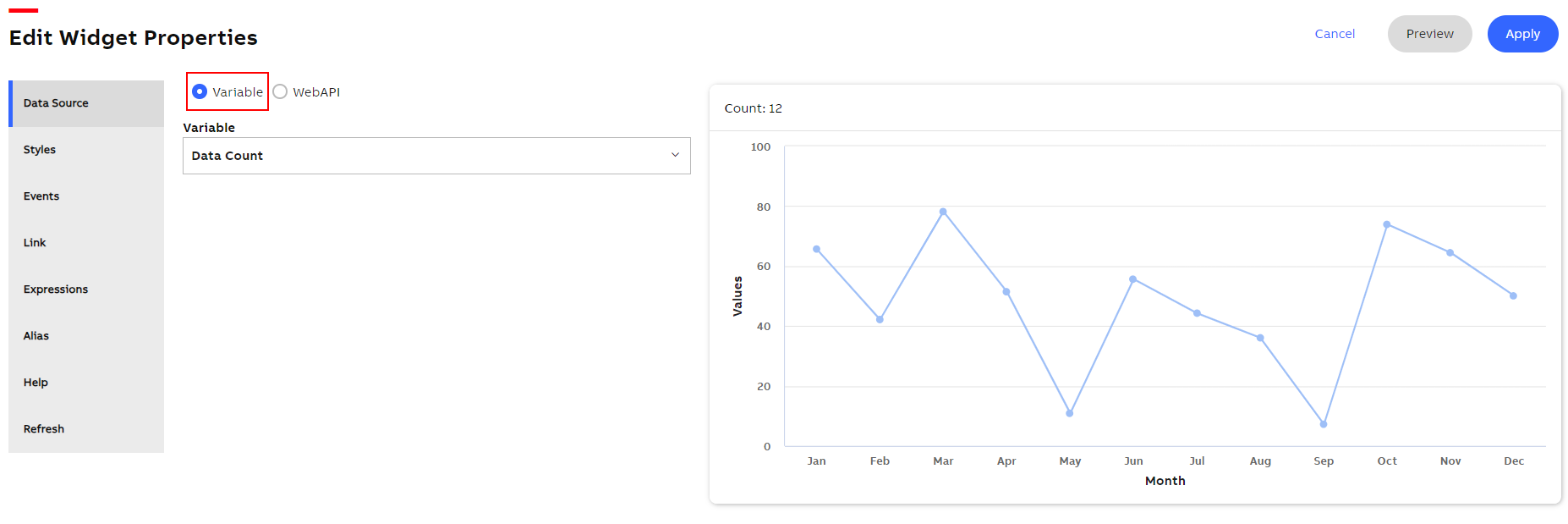
Selecting Variable as Data Source under Widget Properties
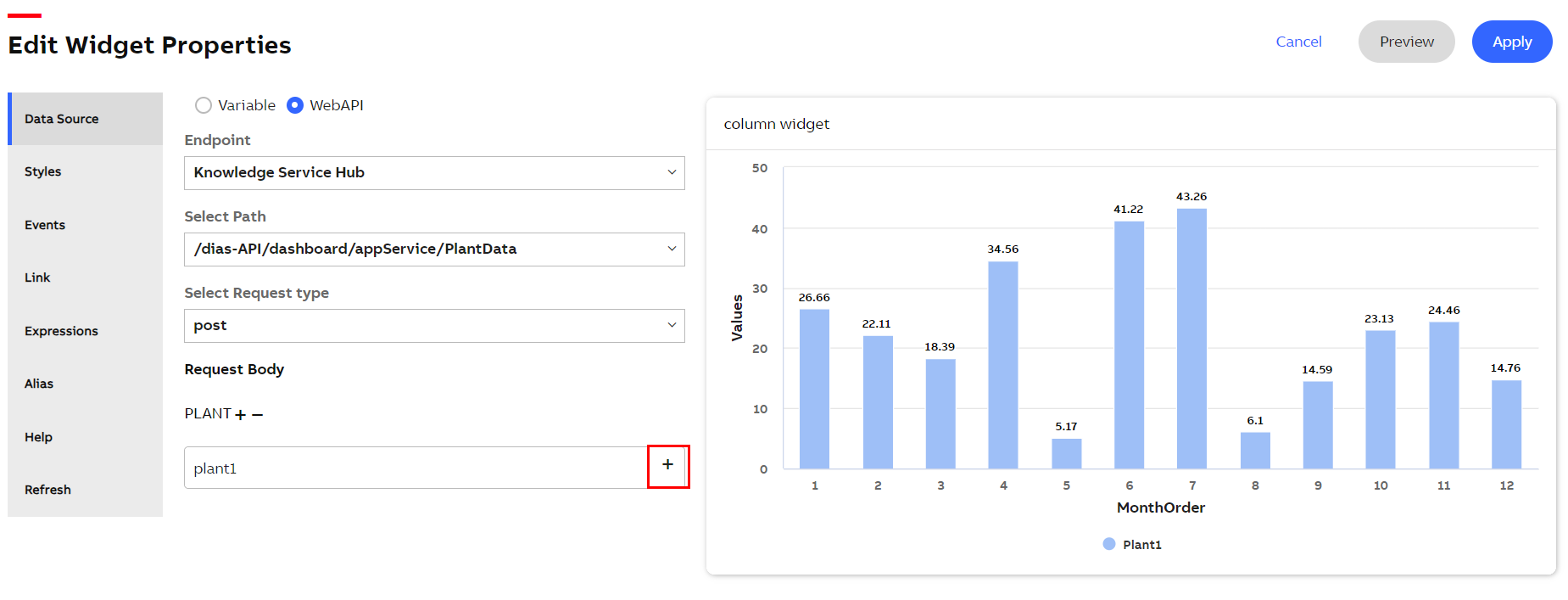
Selecting WebAPI as Data Source under Widget Properties
In the above figure, you can either manually type the plant name under Plant +- field or you can click the icon to open the Parameter Value Configuration pop-up and select the name by performing the following procedure:
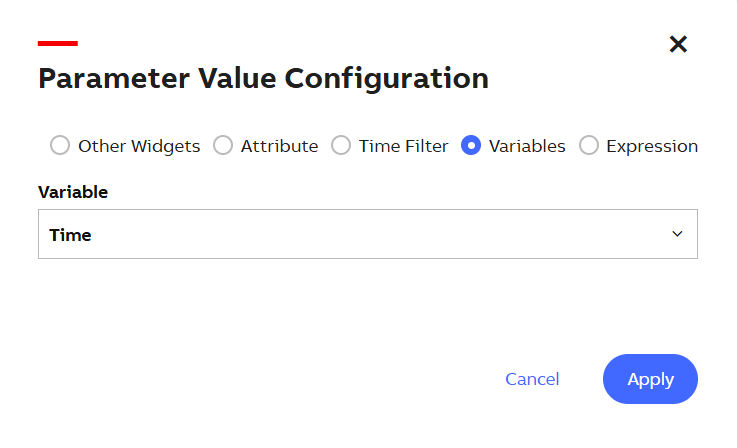
Parameter Value Configuration
-
Select a parameter by clicking the radio button next to it.
-
Select From Widget by clicking the dropdown menu.
-
Select a Field Type by clicking the radio button next to it.
-
Select a Field by clicking the dropdown menu.
Parameter
Description
Current Widget
This option allows you to select a field name or field value from the current widget.
For example, under Select widget > Edit Widget Properties > Events > Publish Events, if we select the Param Key field value as one of the fields from Current Widget, then the parameter will hold that field's value of the selected rows from Data Source.
Other Widgets
This option displays the fields or columns from other widgets.
This option allows you to select either the field name or field value of any other widget as a parameter value. This provides an implicit event to another widget without publishing and subscribing to another widget.
For example, say we have two Select Widgets, Select Widget_1 and Select Widget_2. When configuring Select Widget_1 in the Parameter Value Configuration pop-up we can select the Other Widgets option and fetch data from Select Widget_2.
In the From Widget field, we can click the dropdown menu and choose Select Widget_2.
Under Field Type > Field Value, we can again click the dropdown menu and select one of the fields from the datasource of Select Widget_2.
Hence the parameter will hold the value of selected rows from datasource of Select Widget_2.
When this option is selected, Field Name and Field Value options are displayed.
-
Field Name: Publishes the name of the column or field name of the data response from the other widget.
-
Field Value: Publishes the value of the column or field name selected from the dropdown.
Attribute
This option allows you to select any attribute by clicking the dropdown menu and set it as a parameter value.
Attributes are defined and configured at dashboard level in the template properties.
Time Filter
This option allows you to choose either Start Date & Time or End Date & Time of the Time Filter.
Whenever the Time filter value changes this property gets reflected automatically.
Variables
This option allows you to select any variable and set it as property. For more information, see Variable.
Expression This option allows you to define an expression and set it as property.
-